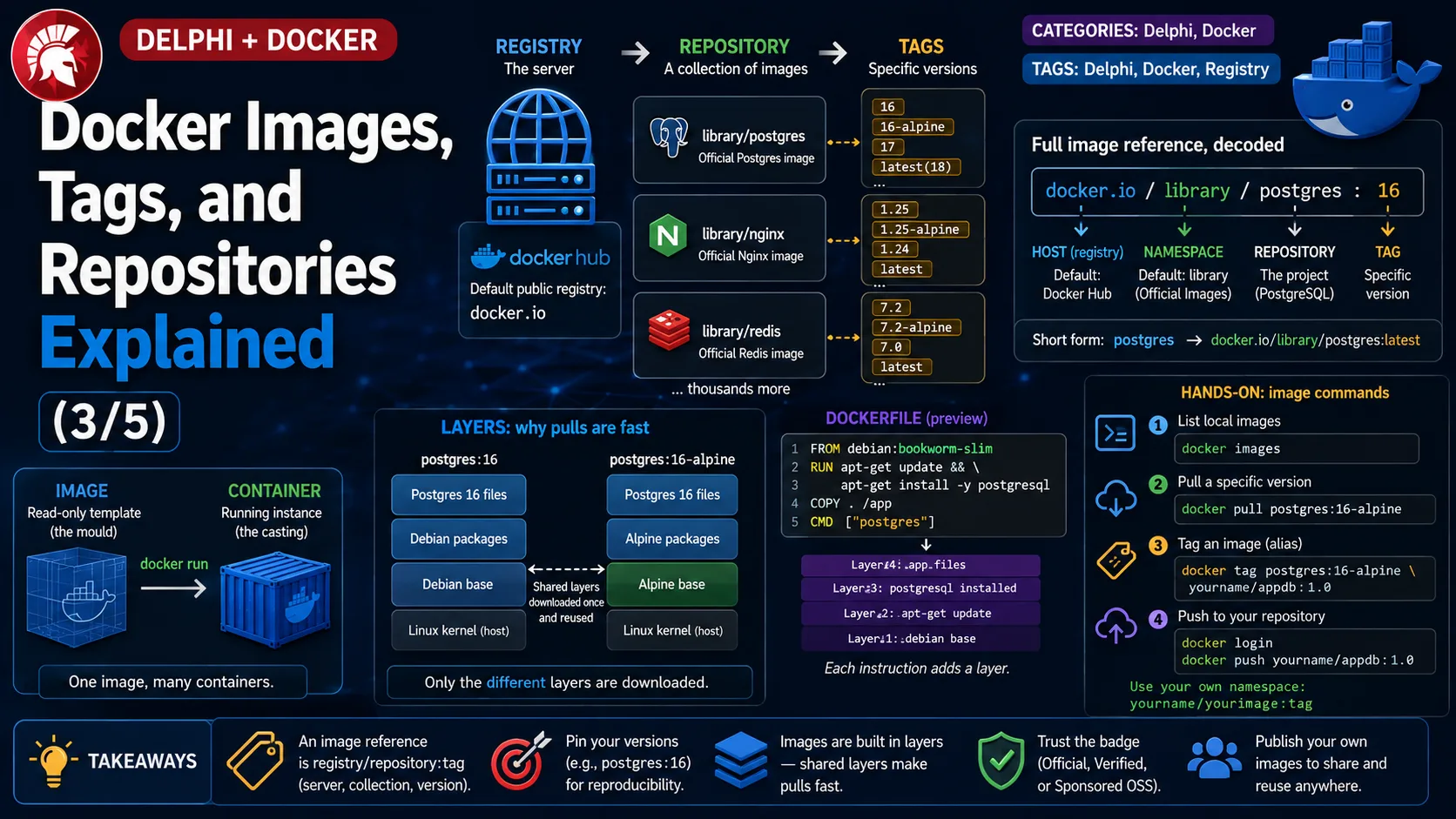
In Part 2 we did something that, if you stop and think about it, is a little bit magic. We typed postgres into a docker run command, and a few seconds later a fully configured PostgreSQL database server was up and answering queries from a FireDAC app — a server nobody installed, nobody downloaded from a vendor site, nobody clicked through a setup wizard for. We just said the word postgres and Docker produced a database.
So where did it come from?
That single question is the whole subject of this post. The answer involves three words that scare people off — image, registry, repository — plus tags and layers. Every one of them describes something small and familiar. By the end of this part you'll read docker.io/library/postgres:16 the way you read a file path: each slice will mean something specific, and you'll know exactly which server it came from, what version you got, and why the second time you pull it, it's nearly instant.
This is the middle stop on a five-part journey. Here's the full map so you can see where we are.
Image versus container: the mould and the casting
Before we chase down where postgres came from, one distinction has to be crystal clear, because everything else hangs off it. In Part 1 you ran containers. What you downloaded was an image. They are not the same thing, and the difference is exactly the difference a Delphi developer already knows between a class and an object.
An image is, in Docker's own words, "a standardized package that includes all of the files, binaries, libraries, and configurations to run a container." It is read-only and it never changes — "once an image is created, it can't be modified." A container is a running instance created from an image. One image, many containers, just as one class produces many objects.
Keep that picture in mind. Everything from here on is about images — where they live, how they're named, how they're versioned, and how they're built. Containers are just what you get when you press "go" on one.
The registry: the server images come from
So when you typed postgres, Docker went and fetched an image. From where? From a registry. A registry is, per Docker's documentation, "a centralized location that stores and manages container images." It's a server on the internet whose whole job is to hand out images when a docker client asks for one.
There is one registry Docker treats as the default: Docker Hub, described in the docs as "a public registry that anyone can use and is the default registry." That's the piece of magic decoded — when you said postgres with no server named, Docker quietly assumed Docker Hub and pulled from there. It's the same convenience as a shell assuming the current directory when you type a bare filename.
Docker Hub is not the only registry — there are others, and you can run your own private one — but because it's the default, it's where most first pulls come from.
The repository: a Git repo of image versions
Inside a registry, images are organised into repositories. This is the term you asked me to nail down, so let's be careful about it. A repository is "a collection of related container images within a registry" — Docker's docs compare it to "a folder for organizing images by project." The postgres repository holds every version of the PostgreSQL image: version 16, version 17, the slim Alpine builds, all of it, side by side under one name.
Here's the analogy that makes it click for a Delphi developer, and I want to be precise that it is an analogy, not an identity:
So the three words nest cleanly: a registry is the server, a repository is a named collection of related images on that server, and — as we're about to see — a tag picks one specific version inside that repository.
Read the diagram from the outside in: the big frame is one registry, each inner card is a repository for one project, and inside each repository the small blocks are the individual versions you can pull. That nesting is the entire filing system Docker uses.
Tags: picking one specific version
A tag is the version label you attach to a repository name to say which image you want. It's the :16 in postgres:16. Leave it off, and Docker fills in a default tag for you called latest — which is exactly what happened in Part 2 when you typed a bare postgres.
The PostgreSQL repository is a Docker Official Image, and its tag list is real and public. These are all genuine, pullable tags at the time of writing:
postgres:16— the latest 16.x release on the default Debian basepostgres:16-alpine— the same PostgreSQL 16, built on the tiny Alpine Linux base (much smaller)postgres:17— the latest 17.x releasepostgres:latest— currently PostgreSQL 18, because that's what the maintainers have chosen to labellatest
That last line is doing a lot of quiet work, and it leads straight to the single most useful warning in this whole post.
Version pinning is the reproducibility habit that saves you a bad afternoon six months from now, when latest has quietly rolled to a new major version and your schema migration wasn't ready for it.
The full image reference, decoded
Now we can read the whole thing. When you type postgres, Docker expands it into a complete image reference with a precise structure — Docker's tag reference gives the format as [HOST[:PORT]/]NAMESPACE/REPOSITORY[:TAG]. Every bare name you've typed so far was that full form with the defaults filled in for you.
Two of those defaults deserve a word. The registry defaults to docker.io — Docker Hub — as we established. And when the namespace is omitted, Docker fills in library, which the tag reference notes is "reserved for Docker Official Images." That's why the official Postgres image lives at library/postgres, and why your own images will instead sit under your Docker Hub username, like yourname/myapp — more on that shortly.
Layers: why the second pull is fast
Here's the part that turns the whole system from "sensible filing" into "genuinely clever engineering." An image is not one monolithic blob. Per Docker's docs, "container images are composed of layers. Each layer represents a set of file system changes that add, remove, or modify files." Layers are stacked, read-only, and — crucially — shared between images.
That sharing is the payoff. Because two images built on the same base (say, the same Debian foundation) literally reuse the identical base layers, Docker only ever stores and downloads each layer once. The first pull fetches everything; the next image that shares a base skips straight past the layers it already has.
Read the two stacks bottom-up: both images sit on the same Debian base layer, so Docker keeps one copy on disk and both images point at it. Only the upper, image-specific layers differ. This is why your second pull of anything sharing a common base feels instant — you're only downloading the few layers that are actually new to you.
It also explains the practical appeal of the -alpine variants. Alpine Linux is a deliberately tiny base, so postgres:16-alpine carries far less operating system than the Debian-based postgres:16. Same PostgreSQL, smaller footprint — handy when image size or download time matters.
A tiny preview: each instruction is roughly a layer
You don't build images to use them, and we'll leave real image authoring for later in the series. But one three-line peek makes the layer idea concrete. Images are built from a text file of instructions called a Dockerfile, and — as a first approximation — each instruction adds a layer on top of the one before:
FROM postgres:16          # layer 0: start from the official Postgres image
COPY init.sql /init.sql   # layer 1: add one file
ENV POSTGRES_DB=appdb     # layer 2: set a default database name
That's a preview, not a lesson — we build these properly in a later part. The point for right now is simply this: layers aren't abstract, they're the direct result of build steps, and reusing a lower layer means reusing everyone's earlier work.
Trusted content: knowing an image is safe to pull
Since anyone can publish to Docker Hub, a fair question is: how do I know the postgres image is the real one and not something a stranger uploaded? Docker Hub answers this with visible trusted content badges. Docker Official Images (like postgres) are Docker's own curated repositories, "regularly updated" and "some of the most secure images on Docker Hub." Beyond those, a Docker-Verified Publisher badge marks images "from commercial publishers verified by Docker," and a Docker-Sponsored Open Source badge marks "trusted, secure, and active open-source projects." When you see one of those three badges on a repository page, you're looking at content Docker vouches for — a simple, positive signal that you're pulling from a good source.
Hands-on: reading and moving images
Enough concept — let's use the commands, each one verified against Docker's CLI reference. Follow these in order.
Step 1 — List the images you already have
See what's on your machine, and read the repository, tag, and size columns you now understand, with docker images:
docker imagesEach row shows a REPOSITORY, a TAG, an image ID, and a SIZE. After Part 2 you'll see a postgres row here — that's the image your database container was created from, sitting in local storage so it never has to be downloaded again.
Step 2 — Pull a specific, pinned version
Fetch the smaller Alpine build of PostgreSQL 16 explicitly, using docker pull with a real tag:
docker pull postgres:16-alpineWatch the output: Docker downloads each layer separately, and any layer you already have (shared with postgres:16, for instance) is marked "Already exists" and skipped. That skip is the layer-sharing diagram happening in front of you.
Step 3 — Give an image your own name
Create an alias for an existing image with docker tag, whose syntax is docker tag SOURCE_IMAGE[:TAG] TARGET_IMAGE[:TAG]:
docker tag postgres:16-alpine yourname/appdb:1.0This doesn't copy anything — it just adds a second name pointing at the same layers. Notice the target has your namespace (yourname/) instead of library/, because it's headed for your own repository, not the official one.
Step 4 — Push it to your own repository (conceptually)
To share an image, you log in and docker push it to a repository you own. You'll need a free Docker Hub account first, then:
docker login
docker push yourname/appdb:1.0
Docker uploads only the layers Docker Hub doesn't already have, and your image now lives in the yourname/appdb repository at tag 1.0 — pullable from anywhere, by you or your team, exactly the way you pulled postgres. You've closed the loop: you're now a publisher on the same registry you've been consuming from.
You are not limited to Docker Hub
Docker Hub is the default and a fine place to start, but in fairness it is one option among several strong ones, and the whole model is open. The image-reference format's leading HOST/ slot exists precisely so you can point at any registry you like. Credible alternatives include GitHub Container Registry (ghcr.io, which keeps images next to your source on GitHub), Quay from Red Hat, the cloud providers' own registries — Amazon ECR, Azure Container Registry, Google Artifact Registry — and a fully self-hosted option: Docker's own open-source Registry (the registry image), which lets you run a private registry entirely on your own hardware. Pushing to any of them is the same docker push you just learned, only with the registry host spelled out in the image name, e.g. ghcr.io/yourname/appdb:1.0. Pick by where your team and your compliance rules want the images to live.
Takeaways
The magic of Part 2 wasn't magic — it was defaults. Typing postgres expanded to docker.io/library/postgres:latest: a real image, in the library/postgres repository, on the Docker Hub registry, at whatever version the maintainers currently label latest. Now you can read any image reference on sight, choose versions deliberately instead of accidentally, understand why repeat pulls are fast, and even publish images of your own.
An image reference is
registry/repository:tag— the server, the named collection of versions, and the one version you want. Pin the tag when it matters, lean on shared layers for speed, and trust the badge before you pull.
The one habit to carry forward: pin your versions. postgres:16 in anything you depend on; save latest for throwaway experiments. Reproducibility is a choice you make in the tag.
Which sets up Part 4 beautifully. Running a database by hand — remembering the image, the tag, the ports, the environment variables — gets tedious the moment you have more than one container, and a real app always does. So next we stop typing long docker run lines and instead describe the entire stack in a single file: Part 4 — Docker Compose.